Project files for interior designers and architects

Every render, drawing and spec in one place. And a clear yes on each one.

Specdio is where your studio keeps its projects, like a shared drive made for design work. Big renders open in a moment, every version is kept, and each project has its own colour and folders. When it’s time, share exactly the versions you choose and get the client’s answer, drawing by drawing.

Free plan, no card needed. Your clients don’t need an account.

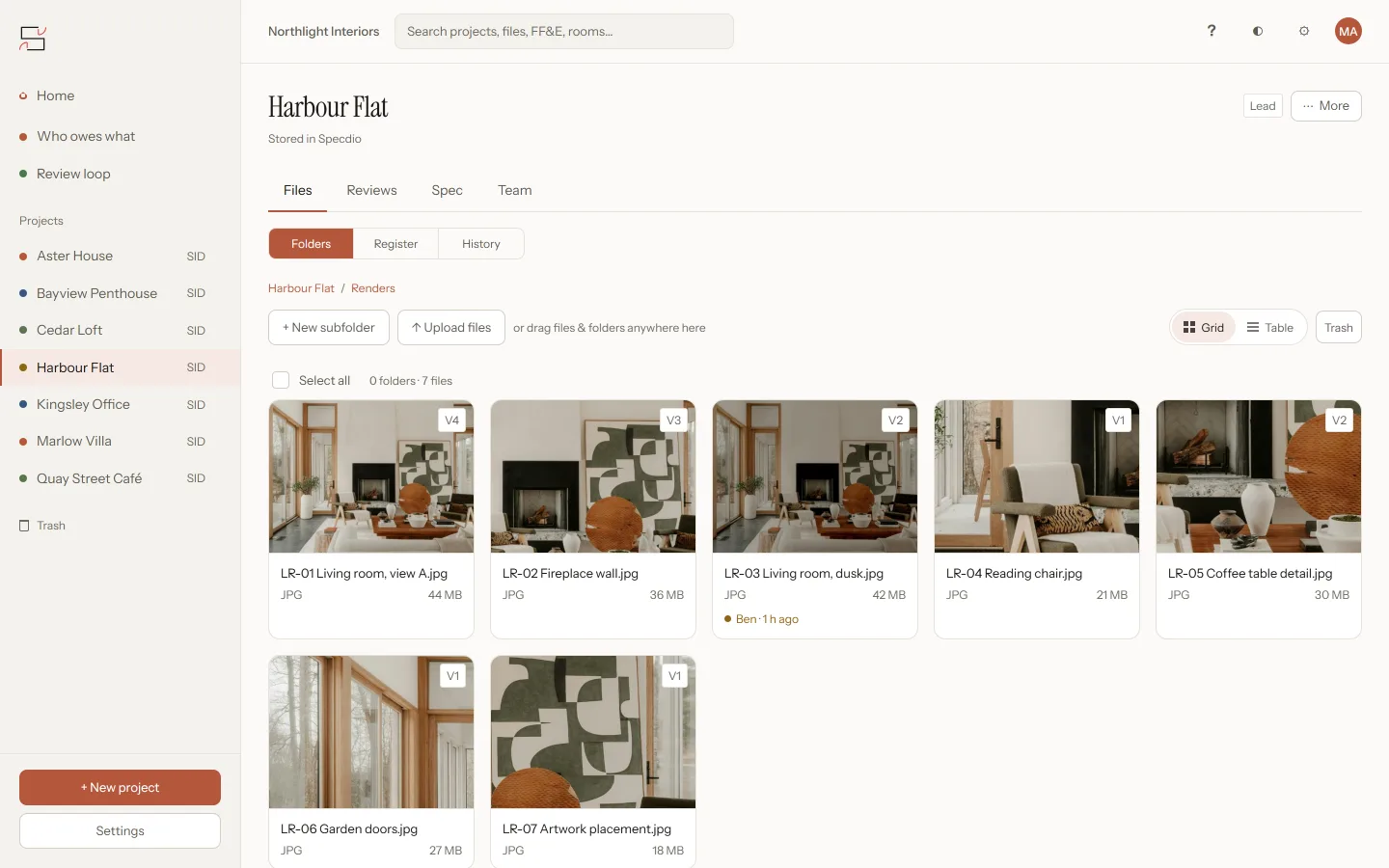
Specdio on a laptop: the Harbour Flat project open on its Renders folder. Seven living-room renders show as large thumbnails with their version number, and the projects are listed A to Z down the side, each with its own colour.
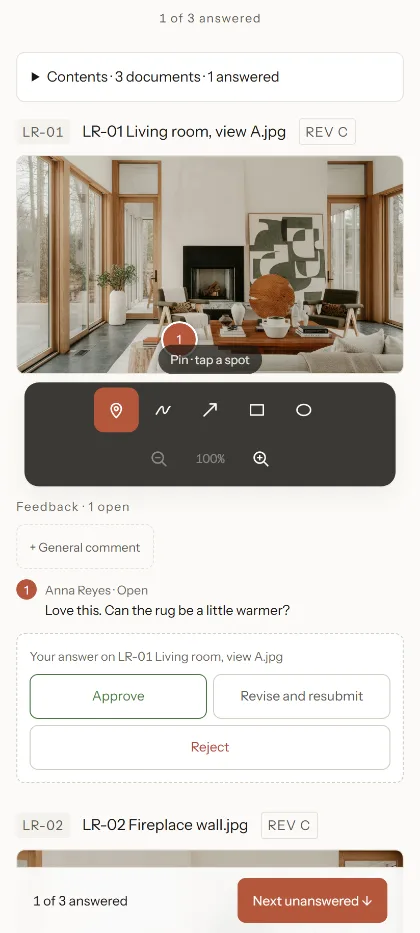
The client's view on an Android phone: a living-room render with a numbered pin and the comment "Can the rug be a little warmer?", above three answers — Approve, Revise and resubmit, Reject.
Real Specdio screens. The studio and its projects are made up.
  1. Love it!! Can we see the sofa in green? Or maybe the other oneClient · 11:42 pm
  2. Kitchen_FINAL_v3_new (2).pdfis this the latest one?Client · 11:43 pm
  3. No, the latest is in the drive. Sending the link againYou · 8:05 am
  4. Mark says no to the tiles. I think?Client · 9:30 am
  5. Client · 9:31 am

Files in a drive. Feedback in your messages. The yes in someone’s memory.

By Friday nobody is sure which file is the latest, which version the client saw, or whether they actually said yes. And the extra rounds aren’t on any invoice.

Specdio keeps all three together: the files, the versions and the yes.

Sheet 01Files

Your files, in folders you already know

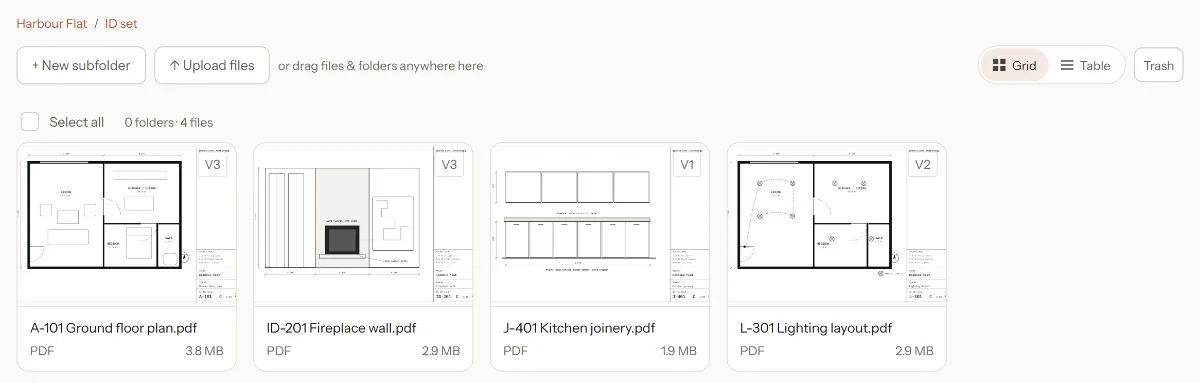
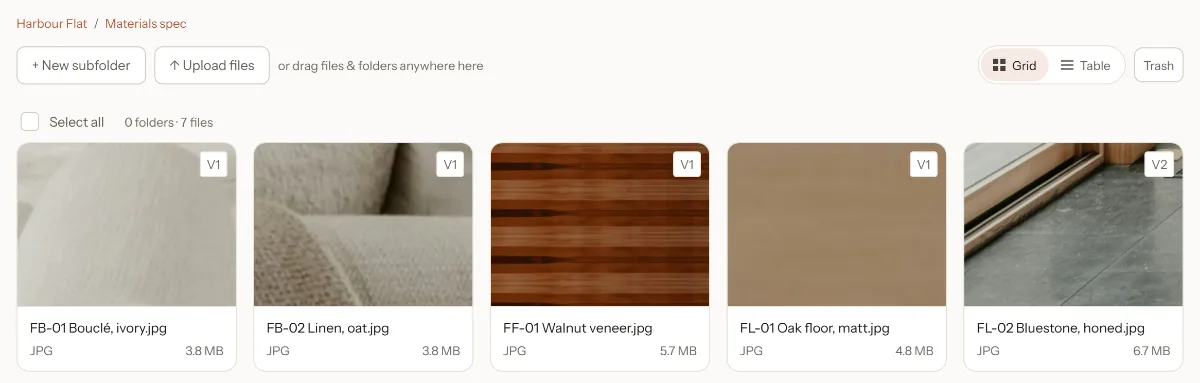
Projects sit A to Z, each in its own colour. Inside are the folders your studio already uses: Renders, ID set, Materials spec, Site photos. Save a new version and the old ones stay in its history. The team can see who is working on a file, so nobody overwrites anybody.

Versions
Every one kept, any one restored
Mistakes
Deleted files wait in Trash
Works on
Mac, Windows, iPad, Android, iPhone
The ID set folder: a floor plan, a fireplace-wall elevation, kitchen joinery and a lighting layout, each with its version number.
ID set
The Materials spec folder: bouclé, linen, walnut veneer, oak floor and bluestone swatches with their spec codes.
Materials spec

Sheet 02Viewer

Big renders open in a moment

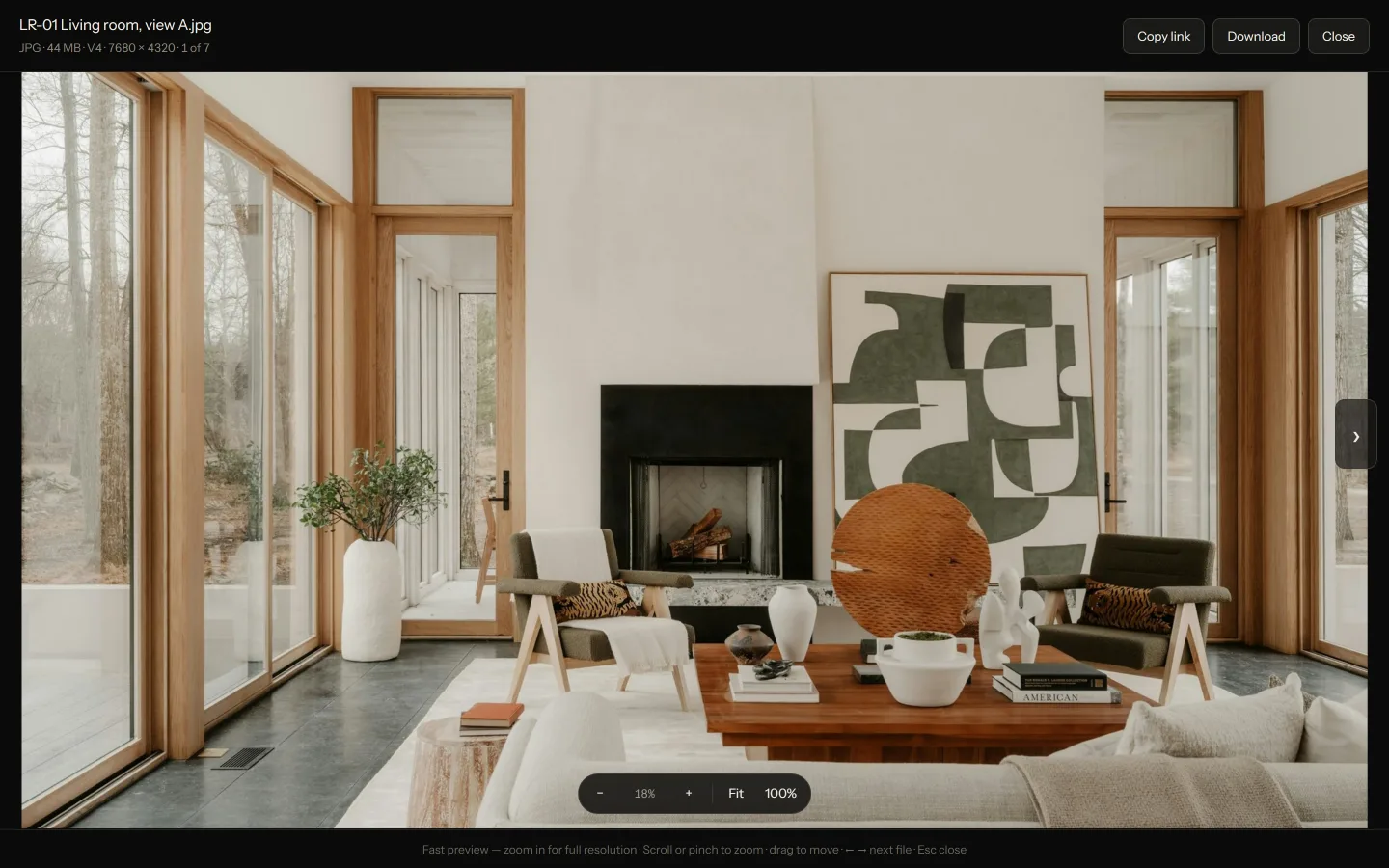
Specdio shows a sharp, screen-size copy first and fetches full detail only when you zoom in, so a 40 MB render opens like a photo, even on a phone. JPG, PNG, TIFF, Photoshop and PDF open in the browser. So do Word, Excel and PowerPoint. AutoCAD and SketchUp files show their built-in preview. Put two versions side by side to see what changed.

A 44 MB, 7680 × 4320 living-room render open full screen in the Specdio viewer, with zoom controls and the note "Fast preview — zoom in for full resolution".
Fast preview first. Full resolution when you zoom.

Sheet 03Sign-off

The client's view on an Android phone: a living-room render with a numbered pin and the comment "Can the rug be a little warmer?", above three answers — Approve, Revise and resubmit, Reject.

Share any version. Get an answer on every drawing.

Pick exactly which versions the client, contractor or joiner sees, and send one link by email or any messaging app. They open it in their browser, with no account and no app to install. They drop a pin where they want a change, then answer each drawing: Approve, Revise and resubmit or Reject. You get an email the moment they answer.

  • A watermark on every preview
  • Links you can switch off at any time
  • A reply-by date the client can add to their calendar

Sheet 04Record

Always know who owes what

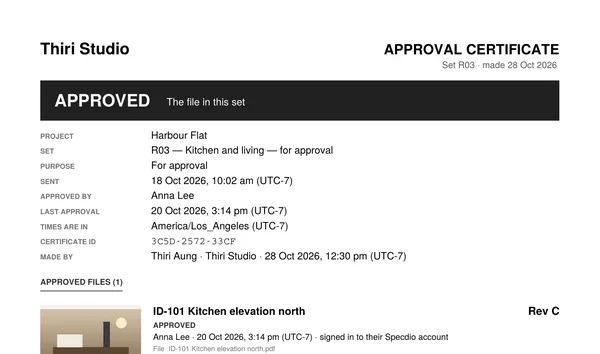
Home shows what’s waiting on you, what’s waiting on clients, and which replies are late. One button sends the client a polite reminder that you can edit first. And every sign-off can become an approval certificate: who approved which revision, and when.

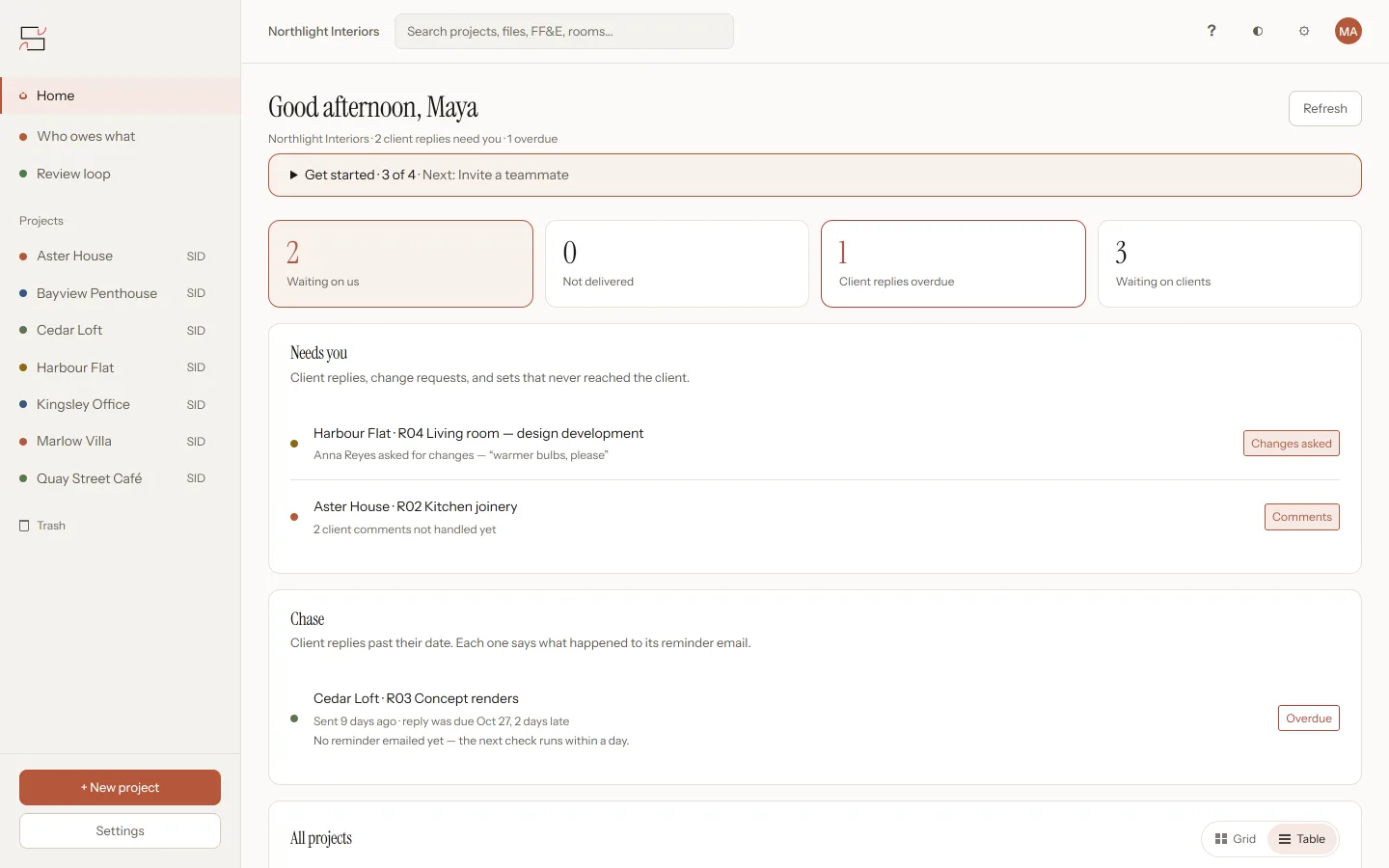
Specdio Home: two client replies waiting on the studio, one overdue reply, three sets waiting on clients, and a list of what needs doing next.The top of an approval certificate: Approved, project Harbour Flat, who approved it, when, and the certificate ID.

Coming from Dropbox or Google Drive?

A drive keeps files. Specdio also keeps the story around them: which version is current, who is working on it, which one the client saw, and what they said.

  1. Bring your folders as they are

    Drag a project folder in, or pick one on your computer or studio server. The folder tree comes with it.

  2. Big originals can stay put

    Specdio makes the previews first, so the whole team can browse right away. Large originals stay on your computer until someone needs them.

  3. Leave whenever you like

    Download any project as one ZIP, same folders, plus a spreadsheet of every version, client answer and comment.

Also in the box

  • Search every project by file, folder, room, material or supplier.
  • A document register with drawing numbers and revision letters, read from your file names.
  • An FF&E schedule with rooms and options. Bring it in from Excel or CSV.
  • Save a product from a supplier's website straight into the FF&E schedule.
  • Transmittals as PDF, ready to send with a set.
  • Team roles: who can change files, and who can only look.
  • Reading comfort, plus light and dark mode on every screen.

Why we built Specdio

We kept seeing talented designers lose their evenings to the same three questions. Where’s the latest file? Which version did the client see? Did they actually say yes?

Specdio is our answer: one calm place for the files, and a clear, dated yes for every drawing. We’re a small team at Thiriverse, building it with our first pilot studios.

The Specdio team · Questions? support@specdio.com

Pricing

Start free. Upgrade when the studio grows. Cancel any time.

Free

$0 forever

One studio, a couple of projects. For trying things out.

  • 2 projects
  • Up to 2 people
  • 5 GB cloud storage
  • 3 live client links at a time
Start free

Practice

$149 / month

Larger teams, more storage, priority support.

  • Unlimited projects
  • Unlimited team members
  • 2 TB cloud storage
  • Unlimited client links and approvals
Start with Practice

Monthly prices, before local tax.

Questions studios ask

Does my client need an account?

No. They open your link in any browser, on a phone or a computer, and answer right there. There is nothing to install.

Which files open in Specdio?

JPG, PNG, TIFF, Photoshop (PSD) and PDF open in the browser, and so do Word, Excel and PowerPoint files. AutoCAD (DWG) and SketchUp (SKP) files show their built-in preview.

Can a client see the rest of my project?

No. A client only sees the set you send them: the exact versions you picked. You can add a watermark, and you can switch a link off at any time.

Can Specdio replace Dropbox or Google Drive for our projects?

For project work, yes. Drag your project folders in and the folder tree comes with them. Specdio keeps every version, opens big renders fast, and lets clients answer drawing by drawing. Large originals can stay on your computer until someone needs them.

Can I get my files out again?

Yes, any time. Download a whole project as one ZIP with the same folders, plus a spreadsheet of every version, client answer and comment.

Will it work on our iPads and phones?

Yes. Specdio runs in the browser on Mac, Windows, iPad, Android and iPhone.

What does it cost?

There is a free plan. Paid plans are billed monthly, and you can cancel any time from Manage billing.

Give your next project a proper home.

Free plan, no card needed. Your clients don’t need an account.

Start free