Review a set from a client link
Open the link your designer sent, comment on the exact spot, and answer each file — no account needed.
Before you start
- The link from your designer — by email, WhatsApp or any other way.
- A phone, tablet or computer. No account and no app needed.
Step 1: Open the link
The set opens straight away. At the top you see the project, what the studio is asking for (for example approval) and the date they would like an answer by.
Press Add to calendar if you want a reminder.
Step 2: Look at each file
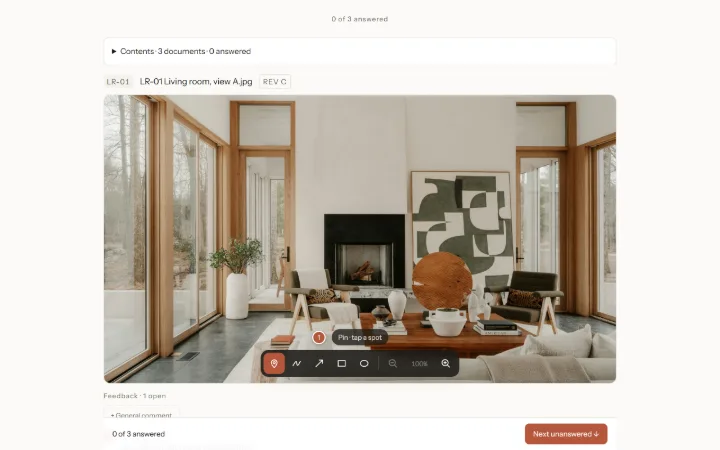
Each file shows large, one under the other, with its number and revision (for example REV C). Pinch, or use + and −, to zoom in on a detail.
In a big set, press Start reviewing to go through the files one by one. Contents at the top lists every file and how many you have answered.
Tip: On a computer: P pins, D draws, + and − zoom, 0 fits the picture back on screen.
Step 3: Comment on the exact spot
Tap the spot you want to talk about, type your comment and press Send comment. A numbered pin marks the spot for the studio.
Want to show the area? Pick Draw, Arrow, Box or Circle, mark it, then type. Prefer talking? Press Speak and say your comment.
The first time, you are asked for Your name, so the studio knows who wrote it.
Step 4: Answer each file
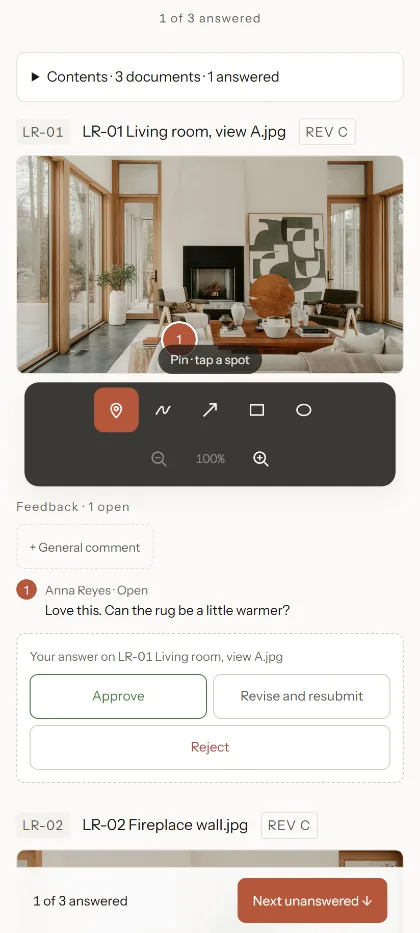
Under each file, in Your answer, choose one:
Approve — it is right. Revise and resubmit — change it and send it again. Reject — this is not the way to go.
Add a note if you like, then press the Send button. An approval with a note or open comments is recorded as “Approved with comments”. You can press Change answer later.
Press Next unanswered ↓ to jump to the next file that still needs you.
Step 5: Answer many files at once
On the list of documents, tick the files (or Select all), then press Approve or Send back for all of them in one go.
Step 6: Done
When every file has an answer you see ✓ Done — the studio has your answers. The studio is told straight away.
Want to find this set again later? Press Save to my Specdio. It is free, and every future set shows up in one list.
Tip: Your comment or answer is kept on your device if the page reloads before you press send.
If something goes wrong
“This link has expired” or “has been turned off”
The studio set an end date, or sent a newer set. Ask them for a fresh link.
It says the studio has sent a newer set
Press the link to the newer set and answer there — that is the one the studio is waiting on.
There is no download button
The studio chose to share previews only. Ask them if you need the original files.