Create your Specdio account
Make an account with your email, Google or Microsoft, then name your studio — or skip the studio if you are here to review.
Before you start
- An email address you can open right now — or a Google or Microsoft account.
- About 3 minutes.
Step 1: Open the sign-up page
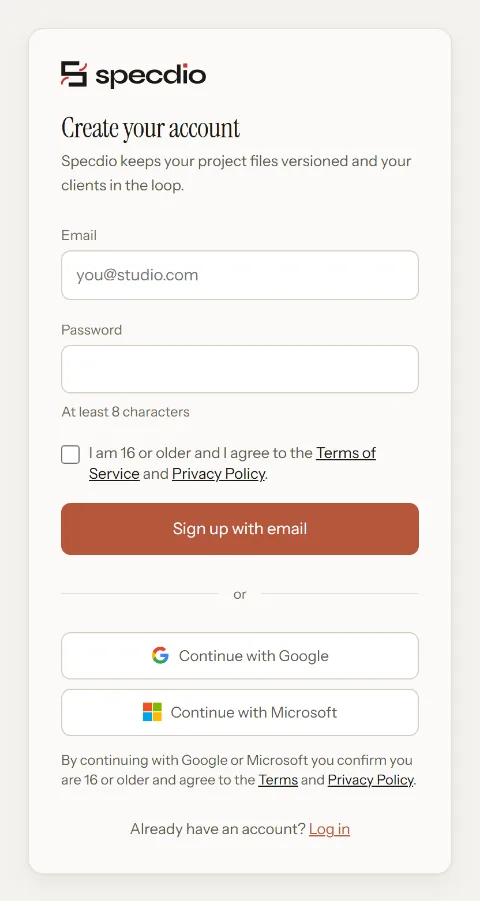
Go to Create your account. From the log-in page, press Sign up at the bottom.
Step 2: Type your email and a password
Fill in Email and Password. The password needs at least 8 characters.
Tick the box to confirm you are 16 or older and agree to the Terms of Service and Privacy Policy. Then press Sign up with email.
Tip: Rather not have another password? Press Continue with Google or Continue with Microsoft instead. You will then see One last step: tick the box and press Continue.
Step 3: Confirm your email, if asked
If the page says “Check your email for a confirmation link”, open that email and press the link. You come back to Specdio, signed in.
Typed the wrong address? Press Use a different email.
Step 4: Name your studio
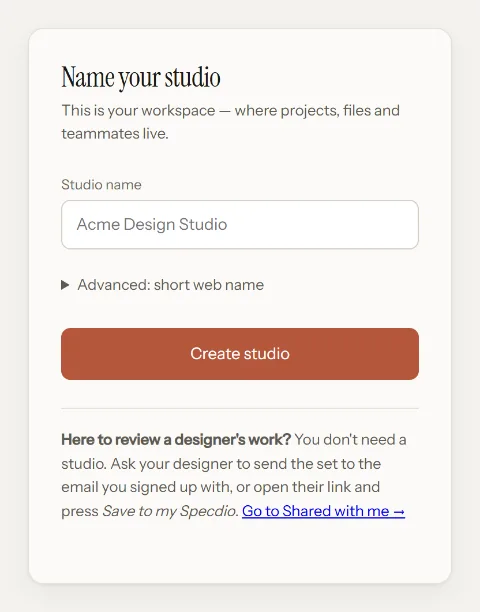
Type your Studio name — for example “Northlight Interiors” — and press Create studio. This is where your projects, files and team will live.
Tip: Here only to review a designer’s work? You don’t need a studio. Press Go to Shared with me → at the bottom of the card.
Step 5: You are in
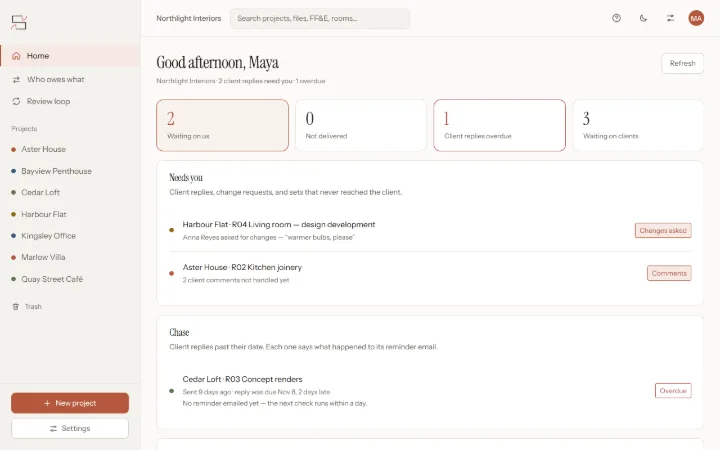
Your studio opens on Home. It is empty at first: press New project to start, or Try a sample project to look around with real-looking renders and drawings.
If something goes wrong
“That email already has an account”
You signed up before — maybe with Google or Microsoft. Go to Log in and use the same way you used the first time.
The confirmation email never came
Wait two minutes, then look in Spam or Promotions. Still nothing? Go back to sign up and check the address for a typo.
I am a client. Why does it ask me to name a studio?
It asks everyone who has nothing shared with them yet. You can skip it: press Go to Shared with me →. Sets your designer sends to your email will show up there.